

SolPrompter AI Teleprompter: Features Tested
SolPrompter is a free online teleprompter and browser-based recording studio for creators who want to paste a script and start recording without installing software. This review covers its scrolling, recording, privacy, device, and workflow behavior, including documented limitations.
Reviewed by the SolPrompter team Updated
Open SolPrompterSolPrompter is a free online teleprompter and browser-based recording studio designed for creators who want to open a browser, paste a script, and start recording without installing additional software.
It works across desktop computers, laptops, tablets, and mobile phones. Scripts, recordings, and voice-processing data remain on your device, allowing the core teleprompter experience to run without uploading your content to a remote server.
SolPrompter has been in development since January 2026. Over more than six months, the product has gone through multiple stages of user research, workflow planning, interface design, prototyping, development, performance refinement, mobile optimization, and continuous improvement.
The goal was never to assemble a collection of disconnected teleprompter features. Every part of SolPrompter—from preparing a script and controlling the scroll to recording video and managing completed takes—has been designed as part of one complete creator workflow.
This article covers every major feature in the current version of SolPrompter, the desktop and mobile experiences, factors that affect performance, and the two capabilities users ask about most: AI Voice Scroll and cross-device Remote Control.
SolPrompter at a glance
SolPrompter combines an online teleprompter, script editor, workspace manager, camera recorder, voice-controlled scrolling system, and remote control in a single browser-based product.
Its main capabilities include:
- Smooth scrolling measured in words per minute.
- AI Voice Scroll that follows your natural speaking pace.
- A floating Notch Mode designed for a more natural eye line.
- Video recording in resolutions up to 4K.
- Remote control from another phone, tablet, or computer.
- Local script and recording storage.
- Mirror Mode for physical teleprompter rigs.
- Eye-line and margin guides.
- Keyboard shortcuts on desktop.
- Touch-optimized controls on mobile.
- Separate layouts designed for desktop and mobile use.
No application download or account is required to begin using the core teleprompter.
Built carefully since January 2026
SolPrompter began development in January 2026 with a simple objective: make professional teleprompter workflows available directly in the browser without sacrificing performance, usability, recording quality, or privacy.
Reaching that goal required more than building a text-scrolling page. The product has gone through several distinct stages:
User and market research
We studied how creators currently use teleprompters for YouTube videos, TikTok content, online courses, presentations, interviews, webinars, product demonstrations, and remote meetings.
We also examined common problems found in existing teleprompter products, including:
- Unstable voice-controlled scrolling.
- Interfaces that are difficult to use on mobile.
- Unclear speed controls.
- Excessive eye movement while reading.
- Limited recording quality.
- Disconnected script and recording management.
- Remote controls that require separate applications.
- Features hidden behind complicated setup processes.
- Desktop interfaces simply compressed onto smaller screens.
These findings shaped the product requirements before the final interface was built.
Workflow planning
Each major workflow was mapped from beginning to end. For example, recording a video involves more than pressing a record button. A creator may need to:
- Create or import a script.
- Format it for spoken delivery.
- Choose a reading width and font size.
- Position the teleprompter near the camera.
- Select a scrolling method.
- Configure the camera and resolution.
- Record several takes.
- Review each recording.
- Download the final version.
- Return to the script for another session.
SolPrompter was designed to support this complete process instead of treating each action as a separate tool.
Interface design and prototyping
Multiple interface directions were explored before the current layout was selected. The design process focused on:
- Reducing visual clutter.
- Keeping important controls within reach.
- Maintaining a clear reading area.
- Making long recording sessions comfortable.
- Preventing controls from covering the script.
- Keeping advanced features understandable.
- Supporting both mouse and touch interaction.
- Minimizing the number of steps required before recording.
Interactive prototypes were tested and refined before features were moved into production.
Desktop and mobile optimization
The desktop and mobile experiences were designed separately. The mobile interface is not simply a smaller version of the desktop layout.
On desktop, SolPrompter uses the larger screen for:
- Detailed script editing.
- Workspace and folder management.
- Large camera previews.
- Side-by-side controls.
- Keyboard shortcuts.
- Advanced recording settings.
- Multi-device remote-control sessions.
- Longer scripts and production workflows.
On mobile, the interface is reorganized around:
- Touch interaction.
- One-handed controls.
- Larger tap targets.
- Limited screen space.
- Camera positioning.
- Portrait and landscape recording.
- Readable text at shorter viewing distances.
- Fast access to play, pause, speed, and recording controls.
- Reduced interface clutter while the teleprompter is active.
Navigation, spacing, button placement, toolbars, text sizing, dialogs, and control density are adjusted according to the device. This allows SolPrompter to work as a practical mobile teleprompter rather than a desktop website that happens to fit inside a phone browser.
Development and performance refinement
After the main workflows were established, the product went through repeated development and optimization cycles. These included:
- Scroll-engine refinement.
- Camera and microphone integration.
- Recording-workflow refinement.
- Local-storage management.
- Device-compatibility improvements.
- Responsive-layout optimization.
- Touch-gesture refinement.
- Voice-alignment refinement.
- Remote-control reliability improvements.
- Long-session stability improvements.
- Accessibility improvements.
- Browser-compatibility improvements.
The current product is the result of these combined stages rather than a single development sprint.
One browser tab, a complete teleprompter studio
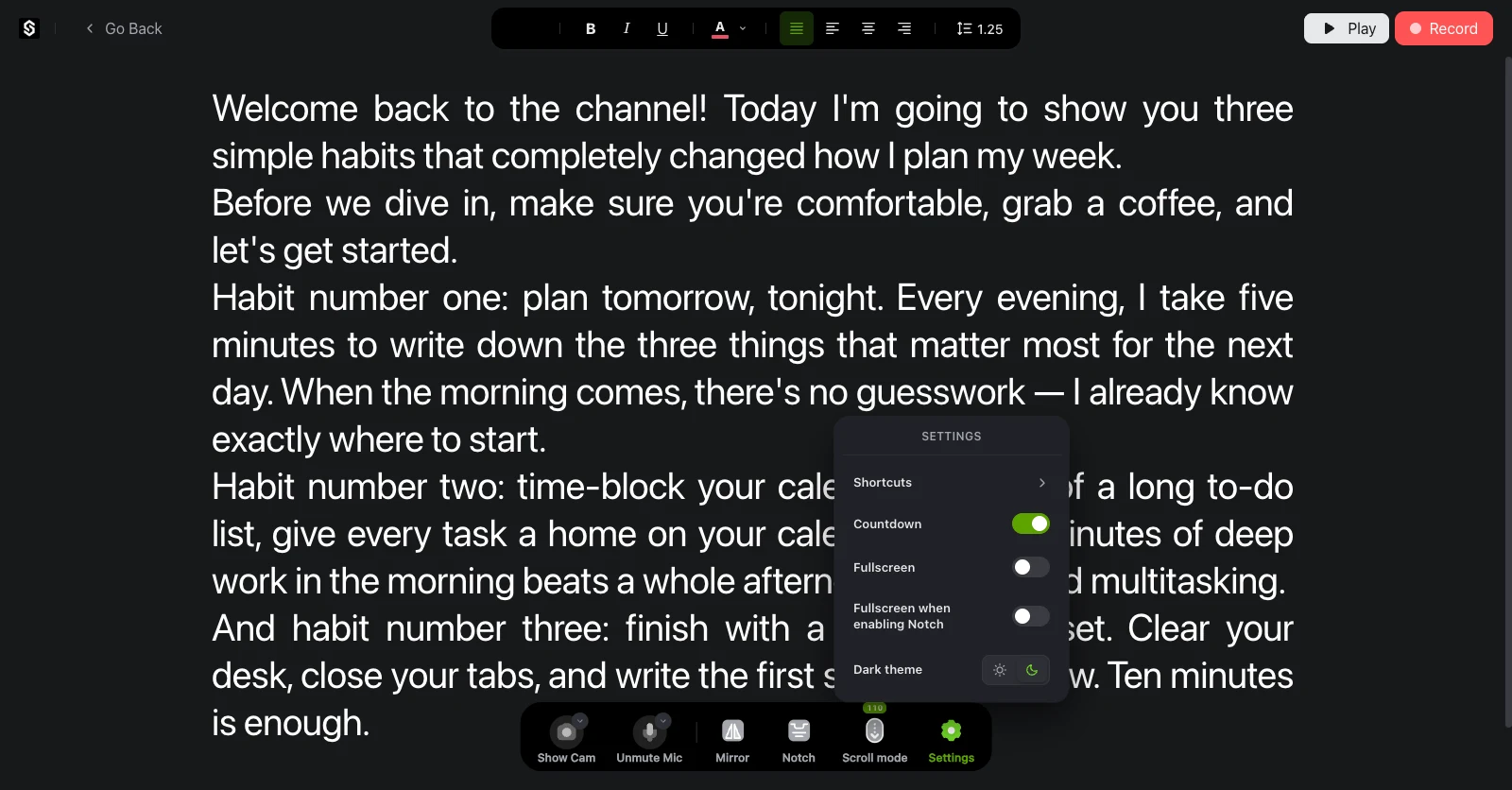
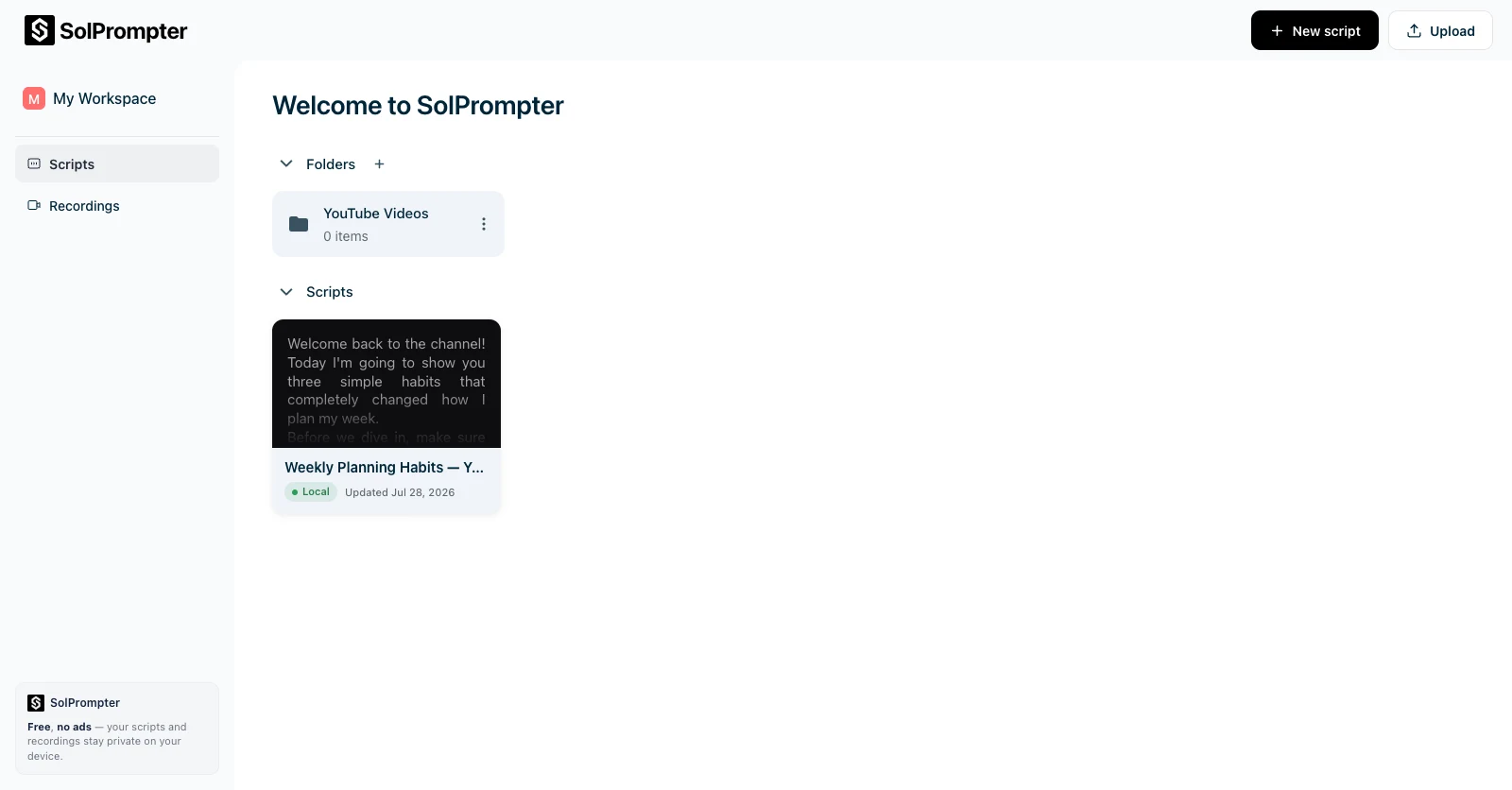
SolPrompter begins with a script editor built for spoken content rather than ordinary document writing. You can paste a script, import existing content, format important lines, and organize scripts into folders and workspaces.
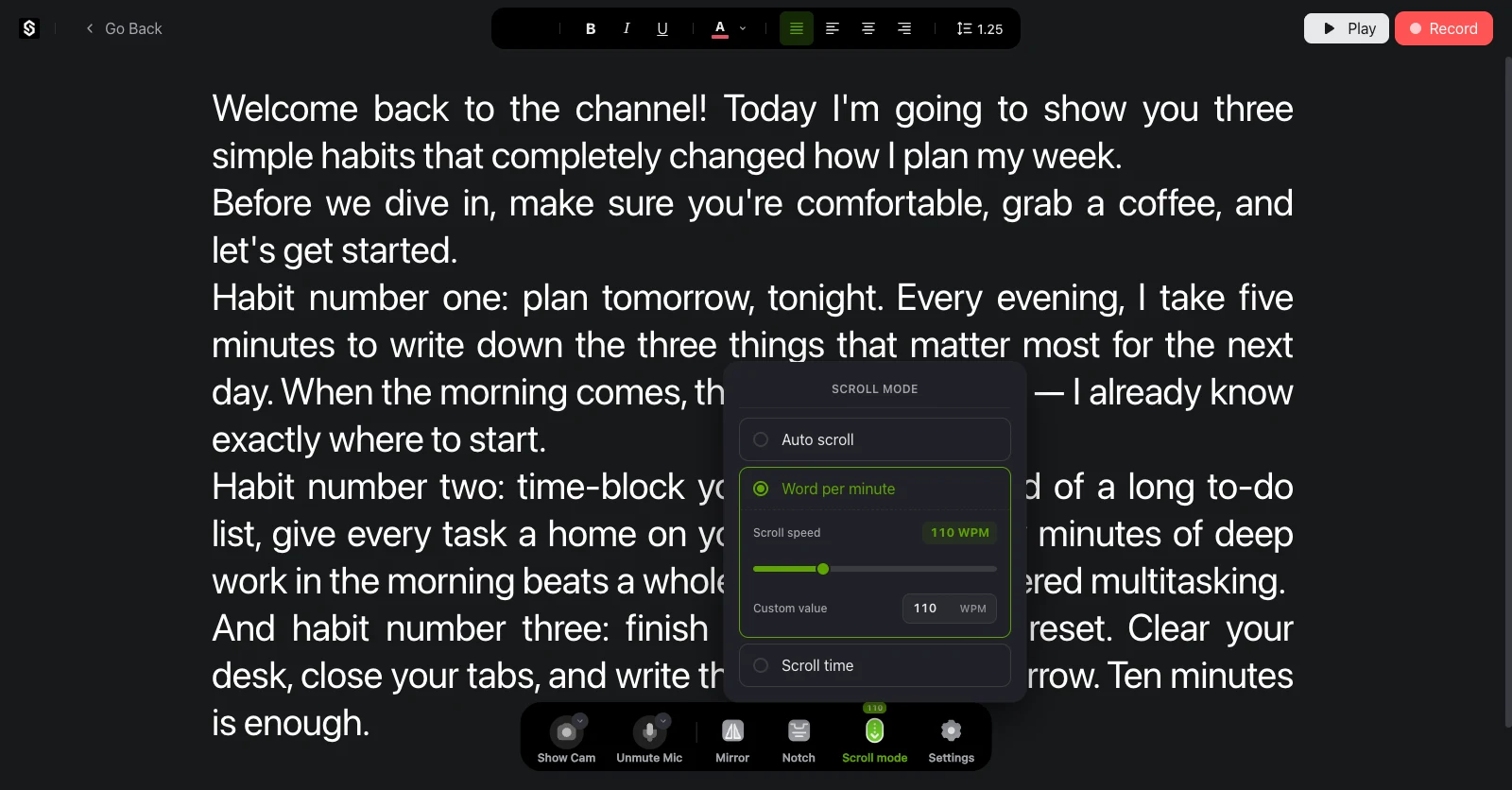
Font size, text color, alignment, bold, italic, and underline controls make it easier to prepare a script that remains readable while recording.
The current editor supports font sizes from 16px to 48px, allowing the same script to be adapted for desktop monitors, laptops, tablets, and mobile phones.
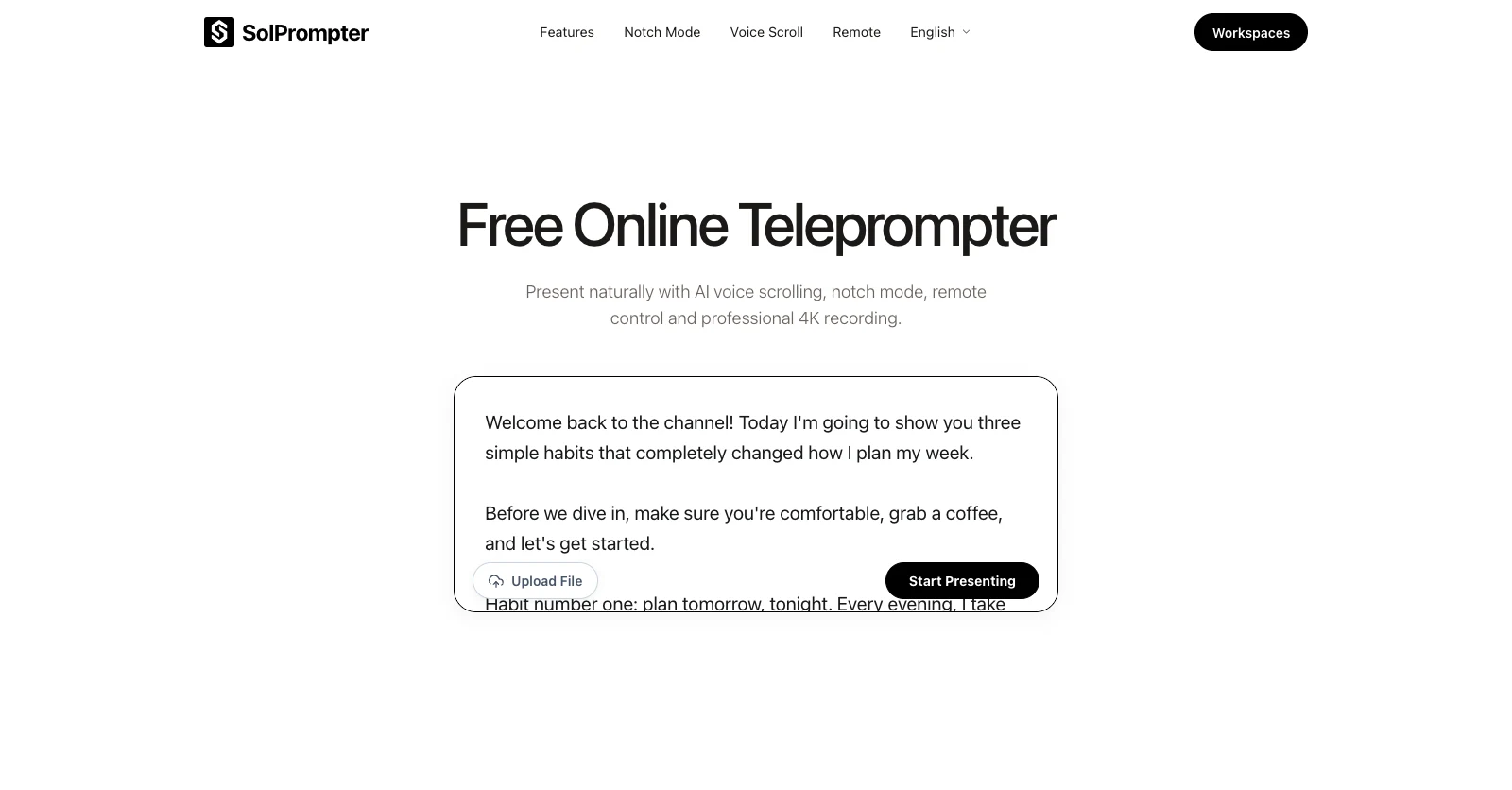
A desktop experience built for full production workflows
Desktop users often need more than a scrolling script. They may be recording long-form videos, managing several projects, reviewing multiple takes, presenting during a meeting, or controlling another teleprompter device.
The desktop interface is designed to make use of the available screen space without overwhelming the reading area. It supports:
- Larger script-editing surfaces.
- Folder and workspace organization.
- Detailed formatting controls.
- Full camera previews.
- Advanced recording settings.
- Keyboard shortcuts.
- Floating Notch Mode.
- Multi-device Remote Control.
- Fast navigation between scripts and recordings.
- Extended recording sessions.
Controls remain accessible without forcing the user to leave the teleprompter workflow. The goal is to provide the capabilities of a dedicated recording workspace while keeping the interface calm, clear, and easy to operate on camera.
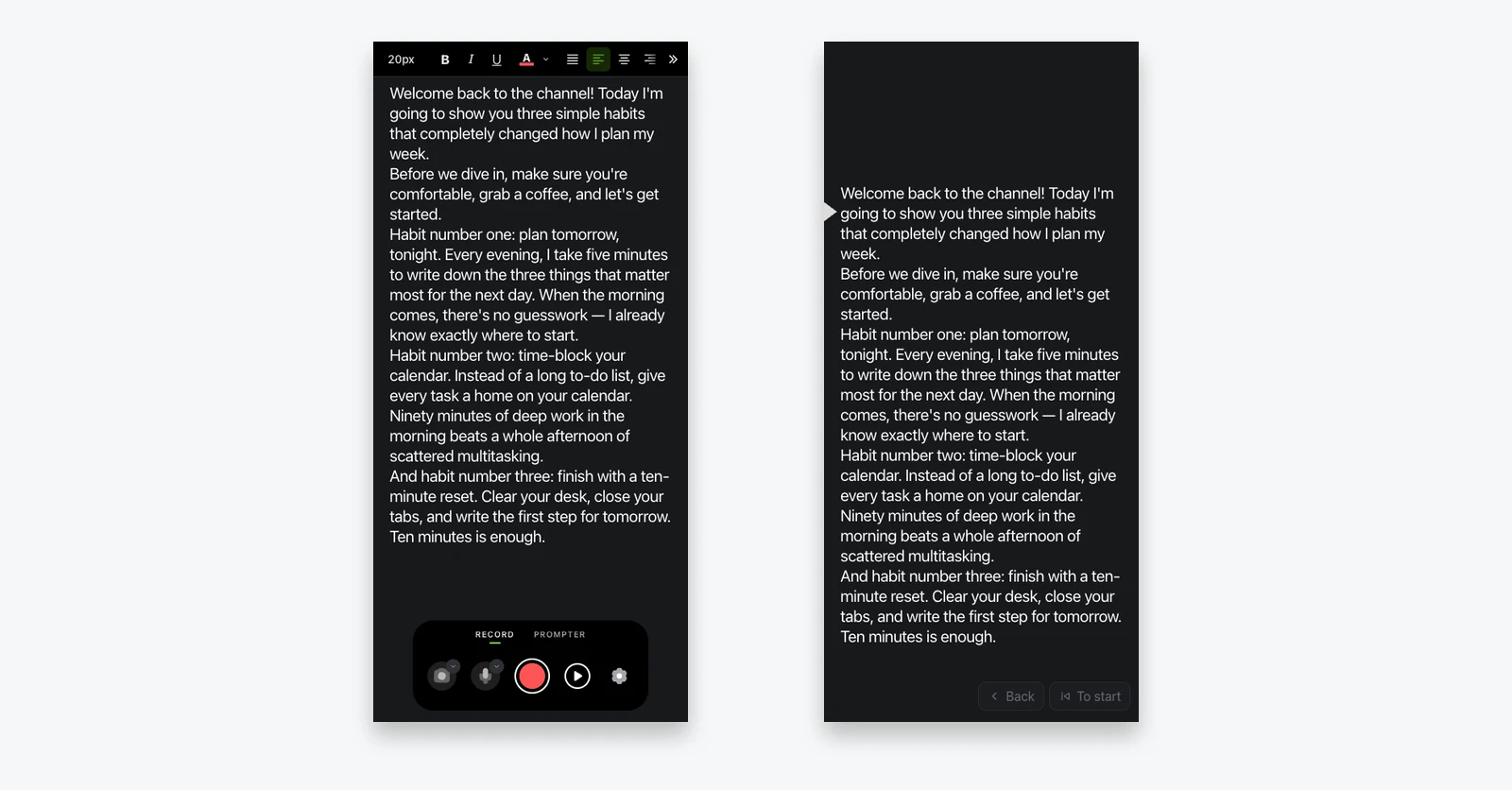
A mobile teleprompter designed for touch
Mobile teleprompter use creates a different set of challenges. The screen is smaller, the device may be mounted close to the camera, and the creator may only have one hand available to control the experience.
SolPrompter therefore uses a mobile-specific interface rather than compressing every desktop control into a narrow layout. The mobile experience prioritizes:
- Large and comfortable touch targets.
- Fast access to play and pause.
- Simple speed adjustments.
- Readable scripts at close distance.
- Portrait and landscape support.
- Camera-friendly text placement.
- Minimal interface obstruction.
- Clear recording states.
- One-handed operation.
- Easy switching between the script and recording controls.
Secondary settings are moved out of the main reading area, while the controls needed during a take remain immediately accessible. The result is a mobile experience designed around how creators actually position, hold, and use their phones while recording.
Smooth scrolling measured in words per minute
Many teleprompters measure speed using arbitrary pixel values. This creates an inconsistent experience because the reading pace changes whenever the font size, line height, script width, or screen size changes.
SolPrompter measures fixed scrolling speed in words per minute, with 110 WPM as the default setting.
Because the speed is based on reading pace rather than raw screen movement, changing the layout or moving from desktop to mobile does not completely alter the timing of the script. You can adjust the speed before recording or make smaller changes while the teleprompter is running.
Mirror Mode for physical teleprompter rigs
Mirror Mode flips the script horizontally so it can be used with a beam-splitter teleprompter. The setting can be enabled with one action and does not require creating a second mirrored version of the original script.
This makes SolPrompter suitable for both browser-only setups and traditional teleprompter hardware.
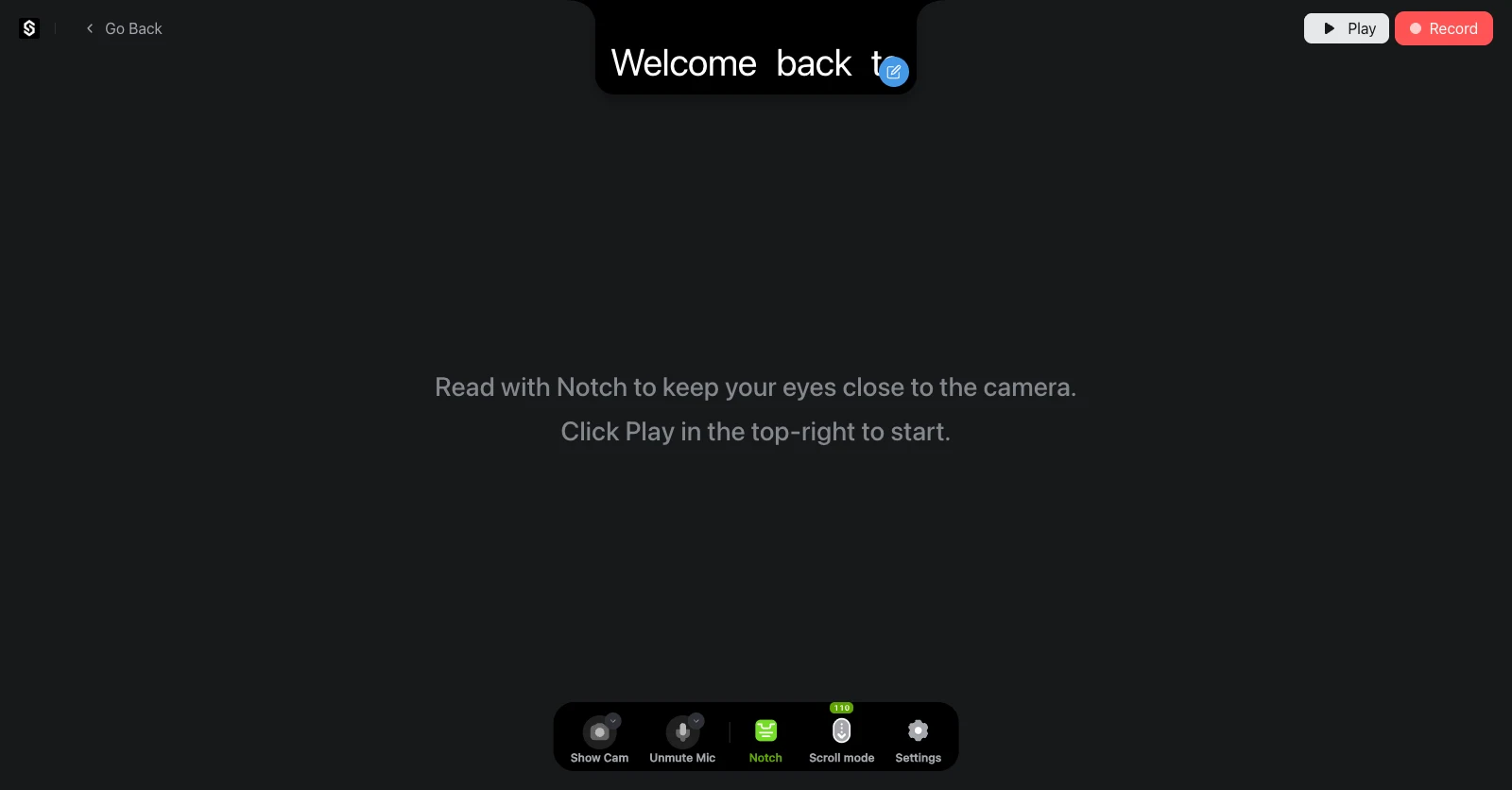
Notch Mode for a more natural eye line
Notch Mode turns the script into a compact, draggable, and resizable floating teleprompter. You can position it directly below or around the webcam, reducing the distance between the words and the camera lens.
This helps limit visible side-to-side eye movement and makes recorded eye contact appear more natural. The floating teleprompter can be resized to show only the amount of text you need, keeping the rest of the screen available for:
- Video meetings.
- Presentations.
- Interviews.
- Product demonstrations.
- Screen recordings.
- Online courses.
- Live streams.
On desktop, Notch Mode can be positioned precisely around the webcam area. On smaller devices, the reading area is adjusted to make the best use of the available screen space.
Eye-line and margin guides
Adjustable reading guides help keep your eyes focused on a consistent part of the screen. Instead of following each line from one edge of the display to the other, you can reduce the readable width and keep active text closer to the camera.
This is particularly useful when:
- Reading on a large monitor.
- Recording close-up talking-head videos.
- Using a phone mounted beside the camera.
- Presenting during a video call.
- Reading long paragraphs.
- Trying to reduce visible eye movement.
The guides can be adjusted according to the screen size, camera position, and personal reading preference.
Record video directly from the teleprompter
SolPrompter can access your camera and record while the script scrolls in the same browser tab. Available recording options include SD, HD, Full HD 1080p, 2K, and 4K.
You do not need to open separate screen-recording software or position another application over the camera preview. The script, camera preview, recording controls, and completed takes remain part of the same workflow.
The actual resolutions available depend on your camera, browser, and device capabilities. On mobile, the recording interface is optimized for touch and smaller screens. On desktop, more advanced camera and resolution controls can remain visible without covering the reading area.
A private local recording library
Recorded takes are saved in the browser's local storage and organized by workspace. You can replay a recording, compare previous takes, and download the version you want to keep. The recording does not need to be uploaded to SolPrompter before it can be reviewed.
This local-first design provides several benefits:
- Faster access to completed takes.
- No waiting for an upload to finish.
- Reduced exposure of private recordings.
- No server-side video-processing queue.
- Immediate playback after recording.
Because browser storage can be cleared manually or automatically by the device, important recordings should still be downloaded and backed up after a session.
Keyboard-first desktop controls
Desktop creators can control SolPrompter without constantly moving the pointer. Examples include:
- Space Play or pause scrolling.
- Arrow keys Adjust the scroll position or speed.
- Enter Move to the next paragraph.
- Ctrl/Cmd + B Bold selected text.
- Ctrl/Cmd + I Italicize selected text.
- Ctrl/Cmd + U Underline selected text.
These controls are particularly useful when working with long scripts or recording several takes in one session. Mobile users receive touch-based alternatives designed for the same actions.
SolPrompter performance considerations
A teleprompter must remain smooth and predictable while the camera is active. A delayed frame, unexpected jump, or unresponsive control can interrupt the speaker and ruin an otherwise usable take.
Scrolling and recording performance can vary depending on browser version, available memory, camera hardware, selected recording resolution, active browser extensions, background applications, device temperature, battery-saving settings, and mobile operating-system restrictions.
Because the primary teleprompter and recording functions operate locally, normal server traffic does not affect scrolling performance. The user's device performs the time-sensitive work.
If you are setting up your workspace, review our teleprompter setup without hardware guide.
AI Voice Scroll: a teleprompter that follows your speech
A fixed-speed teleprompter expects the speaker to maintain the pace selected before recording. SolPrompter's AI Voice Scroll reverses that relationship. Instead of asking you to follow the scrolling script, it moves the script according to how you speak.
When you speak faster, the script advances. When you slow down or emphasize a line, the movement adapts. When you stop speaking, the teleprompter stops with you.
This makes the experience feel less like reading at the pace of a machine and more like delivering a script naturally.
How AI Voice Scroll works
While Voice Scroll is active, SolPrompter listens for spoken words and compares them with the text in your script. The scrolling position is controlled by this alignment rather than by a fixed timer. This allows the system to estimate which part of the script you are currently reading and keep the relevant lines visible.
The processing is performed locally in the browser. Your microphone audio is not uploaded to SolPrompter for remote processing.
Pause without losing your position
You can stop to think, take a breath, drink water, or wait for background noise to pass. The script remains in place while you are silent and continues when you resume speaking.
This removes the need to manually pause the teleprompter every time your delivery is interrupted.
Go off script and return naturally
Speakers do not always read every line exactly as written. You may:
- Add an example.
- Replace a phrase.
- Repeat a sentence.
- Skip a word.
- Speak directly to the audience.
- Pause before returning to the prepared script.
When SolPrompter detects that your speech no longer matches the current line, it holds the scrolling position rather than continuing blindly. When you return to recognizable words in the script, it attempts to align with the text again.
No voice-profile training
AI Voice Scroll does not require you to record a training sample or create a separate voice profile before the first take. You can open the teleprompter, allow microphone access, and begin reading using your normal accent and speaking pace.
Performance can still vary depending on microphone quality, background noise, pronunciation, supported language, speaking volume, and how closely the delivery follows the script.
Voice Scroll on desktop and mobile
AI Voice Scroll is designed to remain practical across different device types. On desktop, creators can combine Voice Scroll with a large camera preview, script editing, Notch Mode, keyboard controls, Remote Control, and higher-resolution recording.
On mobile, Voice Scroll helps reduce the need to touch the screen while the phone is mounted or positioned near the camera. The interface keeps microphone status, scrolling state, and essential controls visible without covering too much of the script.
This is particularly helpful for solo creators who may not have another person available to control the teleprompter.
The correct teleprompter speed should be the speed at which you naturally speak.
Remote Control: use any device as a teleprompter remote
Recording alone often means acting as the speaker, camera operator, director, and teleprompter operator at the same time. SolPrompter Remote Control allows one device to display the script while another controls it.
Open SolPrompter on the device positioned near the camera, then open it on your phone, tablet, or another computer. Enter the short pairing code to connect the devices. There is no separate remote-control application to install.
Control the teleprompter from your phone
Once paired, the remote device can control common teleprompter actions, including play, pause, speed adjustments, moving the script forward or backward, restarting the current take, and jumping to another paragraph or section.
The main display can remain in full-screen mode while the controls stay available on the device in your hand. This allows a desktop computer to display the script while a phone becomes a compact remote.
Use a phone as the teleprompter
The larger screen does not always need to display the script. You can mount a phone next to the camera and use a laptop or tablet as the remote control.
Pairing works in either direction, allowing you to choose the setup that best matches your camera position, available screen space, recording location, device mount, and solo or team workflow.
Because the mobile interface is specifically optimized for smaller screens, the phone can function as a practical teleprompter rather than simply displaying a compressed desktop layout.
Jump directly to another section
During a long presentation or multi-part recording, you may not want to scroll manually through the entire script. Remote Control lets you move to the next paragraph, return to the beginning, or jump to another prepared section without touching the device displaying the teleprompter.
This is useful when:
- Recording a script in separate sections.
- Repeating a specific paragraph.
- Restarting a failed take.
- Moving between presentation topics.
- Directing another speaker remotely.
Connect more than two devices
A session can include an additional display or control device. For example, the speaker reads from one screen, a producer controls the pace from another device, and a third device monitors the synchronized script.
This makes the same browser-based setup useful for solo creators, remote teams, classrooms, and small production crews.
Remote Control performance
Remote Control uses a persistent connection between paired devices. Actual responsiveness depends on signal strength, router congestion, device performance, power-saving settings, network restrictions, and distance from the router.
For the most predictable response, keep both devices on a stable network and prevent either browser from being suspended during a session.
Privacy built into the architecture
SolPrompter is designed so that the most sensitive operations happen locally.
- Scripts are stored in your browser.
- Recordings remain on your device.
- Voice processing runs in the browser.
- The scrolling engine runs on your device.
- Camera footage does not need to be uploaded before recording or playback.
Privacy is therefore not limited to a written policy. It is also reflected in how the application is built.
You should still protect your device, avoid using sensitive scripts on shared computers, and download important recordings before clearing browser data.
Why the interface matters as much as the features
A teleprompter may contain advanced technology and still be difficult to use. Creators often interact with the product while preparing to speak, adjusting a camera, checking a microphone, managing lighting, and thinking about their delivery. The interface therefore needs to reduce cognitive load rather than add to it.
SolPrompter's UI and UX were refined throughout more than six months of development with attention to visual hierarchy, control placement, readability, touch comfort, keyboard efficiency, camera visibility, recording feedback, empty states, loading states, error handling, responsive behavior, long-session comfort, and consistency across features.
Desktop and mobile layouts share the same visual system, but each is structured according to its own interaction requirements. The objective is for the product to feel simple when first opened while still providing advanced controls when they are needed.
Who is SolPrompter designed for?
SolPrompter can be used by anyone who needs to speak naturally while following prepared text, including:
- YouTube creators.
- TikTok and short-form video creators.
- Podcasters.
- Teachers.
- Online course creators.
- Presenters.
- Webinar hosts.
- Job candidates preparing for remote interviews.
- Product teams recording demonstrations.
- Marketing teams producing talking-head videos.
- Speakers practicing presentations.
- Journalists.
- News presenters.
- Remote meeting participants.
- Solo creators recording on mobile.
Because it runs in the browser and adapts to different screen sizes, the same workspace can support both desktop production and mobile recording workflows.
A complete product, not a single feature
SolPrompter is not built around one scrolling mode or one recording button. It combines the major parts of the teleprompter workflow: script preparation, script organization, fixed-speed scrolling, AI Voice Scroll, eye-line adjustment, Notch Mode, Mirror Mode, desktop recording, mobile recording, high-resolution video, Remote Control, local recording management, and privacy-focused processing.
Each capability has been designed to work with the others. A script created on desktop can be prepared for mobile recording. A phone can control a teleprompter running on a laptop. Voice Scroll can be combined with recording. Notch Mode can be used during a meeting or camera session.
The value comes from the complete workflow rather than from any one isolated feature.
Try SolPrompter in your browser
The fastest way to understand SolPrompter is to use it. Open the teleprompter, paste or import your script, position the text near your camera, and start reading.
You can use fixed-speed scrolling, switch to AI Voice Scroll, open Notch Mode, pair another device as a remote, record directly from the browser, review completed takes, and use the product on desktop or mobile.
No download or installation is required. Open SolPrompter.
Frequently asked questions
When did SolPrompter development begin?
SolPrompter development began in January 2026. The product has since gone through more than six months of research, design, prototyping, development, testing, optimization, and refinement.
Is SolPrompter a free online teleprompter?
Yes. The current version allows users to open the teleprompter and use its core features for free in a supported web browser.
Does SolPrompter work on desktop and mobile?
Yes. SolPrompter is designed for desktop computers, laptops, tablets, and mobile phones. The desktop and mobile interfaces are optimized separately. The mobile experience is not simply a smaller version of the desktop layout.
How is the mobile version different?
The mobile interface uses larger touch targets, simplified controls, mobile-specific spacing, camera-friendly text placement, and layouts designed for portrait and landscape recording. Controls that are important during a take remain easy to reach, while secondary settings are kept away from the main reading area.
Do I need to install an application?
No. SolPrompter runs directly in a compatible browser.
Does SolPrompter upload my scripts?
Scripts are stored and processed locally in the browser unless a future feature explicitly states otherwise.
Can SolPrompter record 4K video?
SolPrompter provides recording options up to 4K. Actual availability depends on the browser, camera, device performance, and supported media settings.
What is a voice-activated teleprompter?
A voice-activated teleprompter listens while you speak and adjusts the script position according to your delivery. It can pause when you stop and continue when you resume.
Does AI Voice Scroll work on mobile?
AI Voice Scroll is designed for both desktop and supported mobile browsers. Actual performance may vary depending on microphone quality, browser support, device performance, background noise, and spoken language.
Can I control SolPrompter from my phone?
Yes. Remote Control allows a phone, tablet, or computer to control the teleprompter running on another paired device.
Can my phone be used as the main teleprompter?
Yes. You can display the script on your phone and control it from a laptop, tablet, or another phone.
What is Notch Mode?
Notch Mode is a compact floating teleprompter that can be positioned near the webcam or screen notch. It is designed to reduce visible eye movement while you read.
Are recordings stored online?
Recordings are stored locally in your browser. Important recordings should be downloaded because clearing browser data may remove locally saved files.
Is the mobile interface just the desktop interface resized?
No. Desktop and mobile interfaces are designed around different screen sizes and interaction patterns. Desktop prioritizes script management, detailed controls, keyboard interaction, and larger production workflows. Mobile prioritizes touch controls, camera positioning, limited screen space, and one-handed operation.